Introduction
A potentiometer is a variable resistor that functions as an adjustable voltage divider. It's essentially a knob that allows you to modify resistance values, which can be read as analog input on any analog pin of an Arduino board.
In practical applications, such as the multidimensional box project, potentiometers are used to fine-tune parameters like the maximum distance threshold for ultrasonic sensors, providing real-time configuration adjustments without code modifications.
Wiring the Potentiometer
To connect a potentiometer to your Arduino board, you need three wires:
- Ground (GND): Connect one of the outer pins of the potentiometer to the Arduino's ground pin.
- Power (5V or 3.3V): Connect the other outer pin to the Arduino's 5V pin (or 3.3V for boards like Arduino 101).
- Analog Input: Connect the middle pin (wiper) to an analog input pin (e.g., A0, A1, A2, etc.).
By rotating the potentiometer shaft, you change the resistance on either side of the wiper, which alters the voltage at the center pin. This voltage is proportional to the position of the shaft and can be read as an analog value.
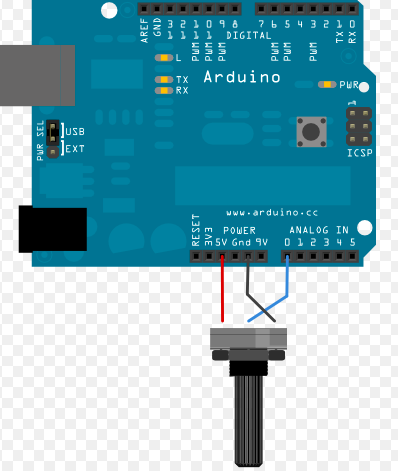
Important Note: Be careful not to confuse potentiometers with digital rotary encoders. Potentiometers provide analog values (0-1023), while rotary encoders provide digital signals and require different handling.
Reading Analog Values
To read values from a potentiometer, start by declaring an integer variable to store the reading:
int potValue;Then, use the analogRead() function to read the analog value from the pin connected to the potentiometer's center pin:
// Define the analog pin connected to the potentiometer
#define POTENTIOMETER_PIN A0

// Read the analog value (returns 0-1023)
potValue = analogRead(POTENTIOMETER_PIN);
The analogRead() function returns a value between 0 and 1023:
- 0: When the shaft is turned all the way in one direction (0V at the pin)
- 1023: When the shaft is turned all the way in the other direction (5V or 3.3V at the pin)
- 0-1023: Proportional values in between, representing the voltage division
This range is valid for both 5V and 3.3V Arduino boards (like the Arduino 101). The Arduino's analog-to-digital converter (ADC) automatically scales the input voltage to this 10-bit range (2^10 = 1024 values).
Using the map() Function
Often, you'll want to map the potentiometer's raw value (0-1023) to a different range that's more useful for your application. Arduino provides the map() function for this purpose, eliminating the need to write complex conversion code.
Function Prototype
map(value, fromLow, fromHigh, toLow, toHigh)Basic Usage
To map a value from the 0-1023 range to a 0-100 range:
int newValue = map(potValue, 0, 1023, 0, 100);How It Works
The map() function re-maps a number from one range to another:
- A value of
fromLowgets mapped totoLow - A value of
fromHighgets mapped totoHigh - Values in between are proportionally mapped
Important: The map() function does not constrain values to within the range. Out-of-range values are sometimes intended and useful. If you need to limit values, use constrain() in combination with map().
Advanced Examples
Reversing a range: You can reverse a range by swapping the target bounds:
// Maps 1-50 to 50-1 (reversed)
int y = map(x, 1, 50, 50, 1);
Mapping to negative values: The function also handles negative numbers:
// Maps 1-50 to 50 to -100 (inverted and scaled)
int y = map(x, 1, 50, 50, -100);
Flexible bounds: The "lower bounds" of either range may be larger or smaller than the "upper bounds", allowing for creative value transformations.
Practical Applications
Potentiometers are excellent for storing physical configuration values that can be adjusted in real-time without reprogramming. This is particularly useful in robotics applications where fine-tuning parameters is essential.
For example, in the Arduporter robot project, multiple potentiometers are used to fine-tune critical parameters such as:
- Minimum distance from walls
- Motor speed in different conditions
- Sensor sensitivity thresholds
- Navigation algorithm parameters
Using potentiometers allows you to increment or decrement variables in your code and use those values as real-time configuration parameters, making your projects more flexible and easier to calibrate.
Complete Example Code
The following function demonstrates how to use a potentiometer to store a "minDistance" value for robotics applications. This example includes proper timing control to avoid reading the potentiometer too frequently:
// Global variables
unsigned long previousMillis = 0;
const unsigned long potentiometerInterval = 100; // Read every 100ms
int MinDistance = 0;
int oldMinDistance = -1;

void checkPotentiometer() {
    char buf[32];
    unsigned long currentMillis = millis();

    // Only read potentiometer at specified intervals
    if (currentMillis - previousMillis >= potentiometerInterval) {
        previousMillis = currentMillis;

        // Read potentiometer and map to desired range (0-20)
        // Adjust the fromHigh value (690) based on your potentiometer's actual range
        MinDistance = map(analogRead(A4), 0, 690, 0, 20);

        // Only update display if value has changed
        if (oldMinDistance != MinDistance) {
            sprintf(buf, "MinDistance changed to: %d", MinDistance);
            // Display on TFT screen (adjust for your display method)
            tft.drawString(buf, 0, yDraw, 2);
            yDraw = scroll_line();
            oldMinDistance = MinDistance;
        }
    }
}
Code Explanation
- Timing Control: Uses
millis()to read the potentiometer at regular intervals (every 100ms), preventing excessive readings and reducing noise. - Value Mapping: Maps the analog reading (0-690) to a useful range (0-20) for distance values.
- Change Detection: Only updates the display when the value actually changes, reducing unnecessary screen updates.
- Calibration: The
fromHighvalue (690) should be adjusted based on your specific potentiometer's maximum reading. Some potentiometers may not reach the full 1023 value.
Tips and Best Practices
- Calibration: Always test your potentiometer's actual range. Some may not reach the full 0-1023 range due to manufacturing tolerances.
- Noise Reduction: Use timing intervals (as shown in the example) to avoid reading too frequently, which can introduce noise.
- Debouncing: For critical applications, implement change detection to only act on significant value changes, ignoring minor fluctuations.
- Multiple Potentiometers: You can use multiple potentiometers on different analog pins (A0, A1, A2, etc.) to control multiple parameters simultaneously.
- Voltage Considerations: Ensure your potentiometer can handle the voltage you're applying. Most standard potentiometers work fine with 5V or 3.3V.
Need More Information?
If you need additional specific information about using potentiometers with Arduino or want to discuss your project personally, please send an email.